 Resident Guide
Resident Guide
Resident Guide
Everything you need to know about using the Reside resident portal — logging meetings, tracking chores, and staying on top of your progress.
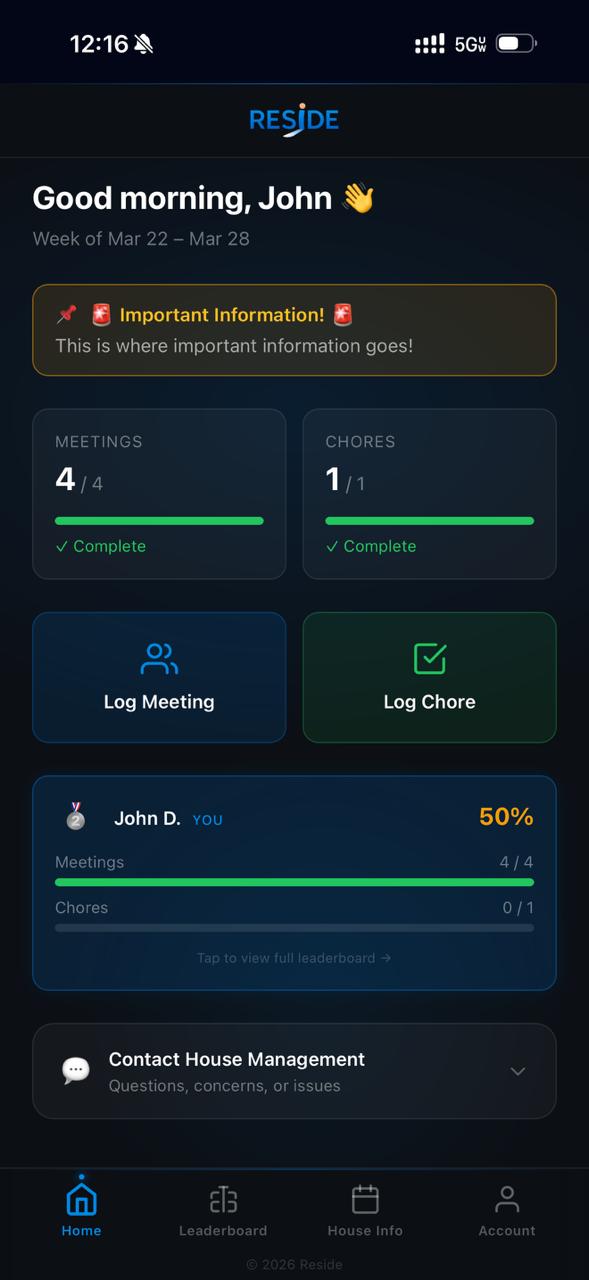
When you log into Reside, you'll land on your Home screen — your main dashboard for the week.
Your name and the current week are shown at the top so you always know where you stand.
Important messages from house management appear at the top of your screen — check these first so you don't miss anything.
Your progress updates automatically as you log activity throughout the week.
The two main buttons you'll use every week:
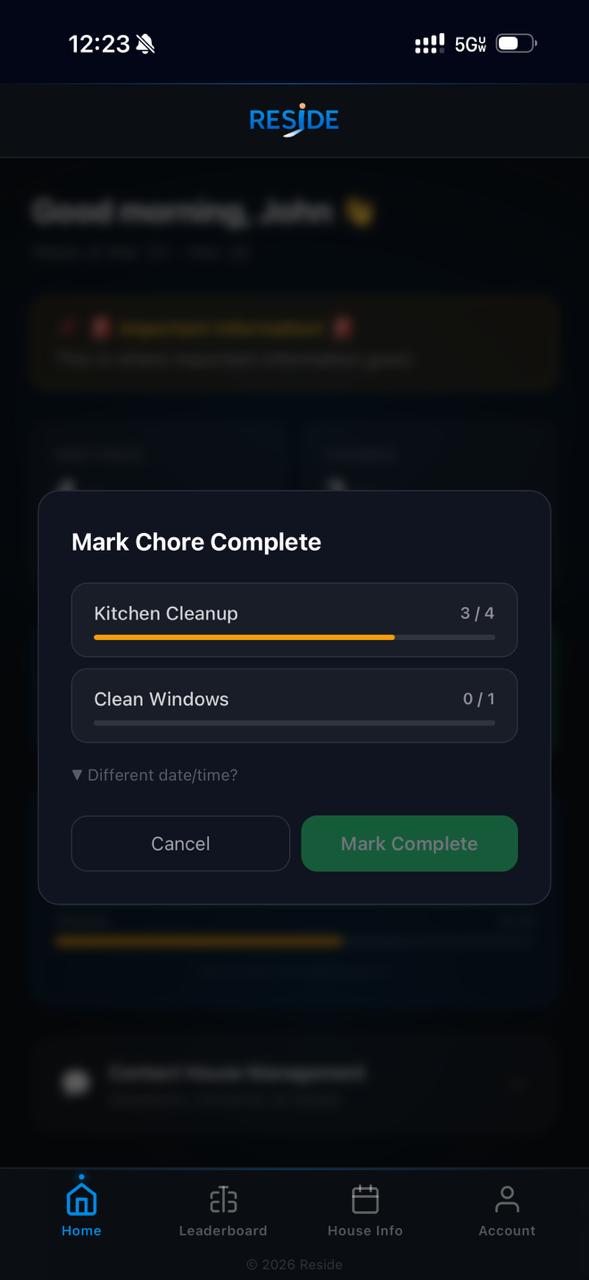
That's it.
Optional: You can choose a different date/time if you're logging something from earlier.
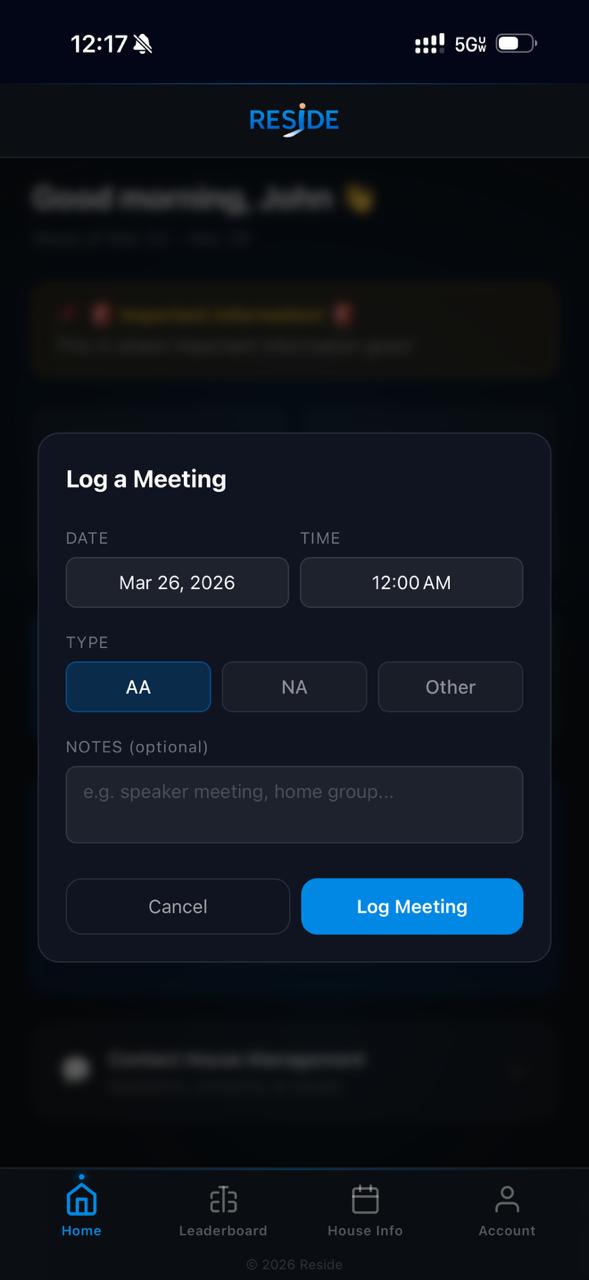
Notes can include: meeting name, location, group name, or any other details.
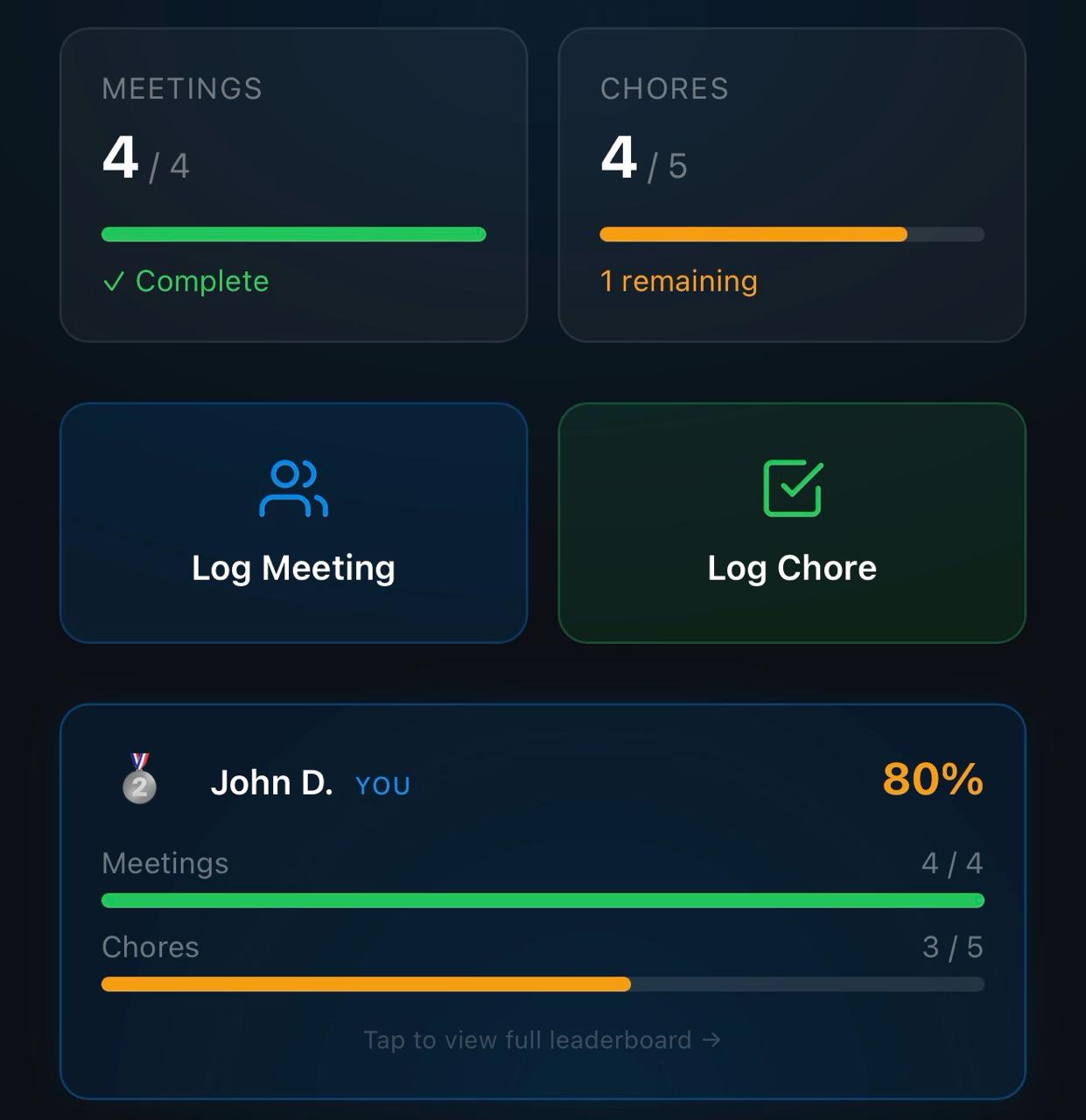
Your progress updates automatically based on what you log.
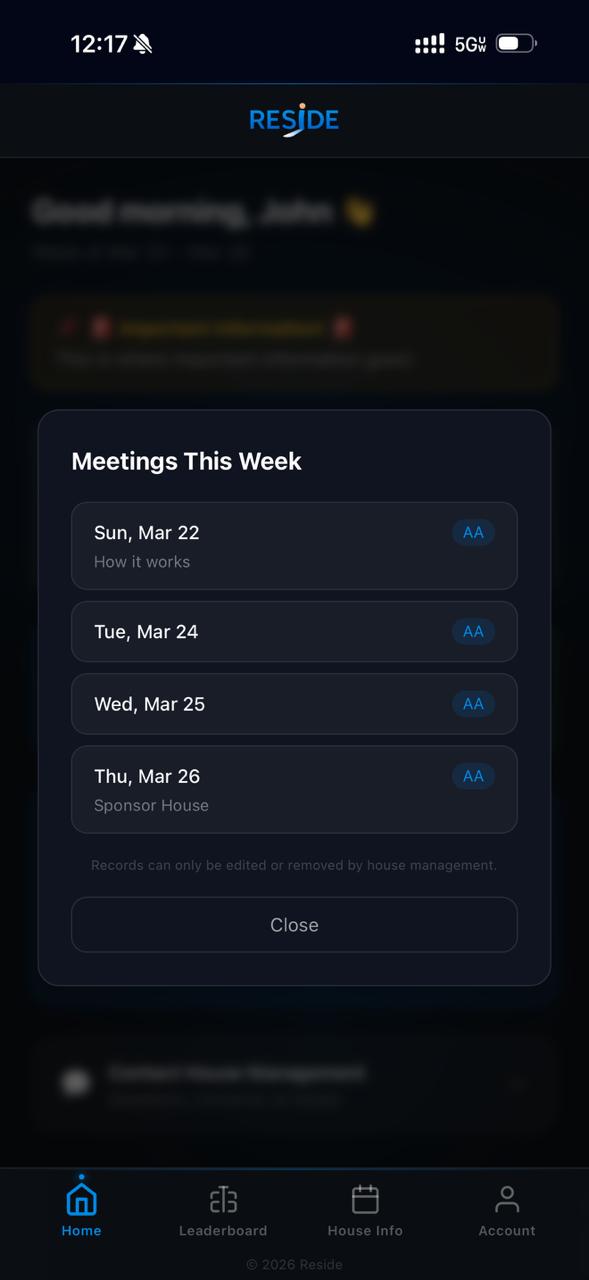
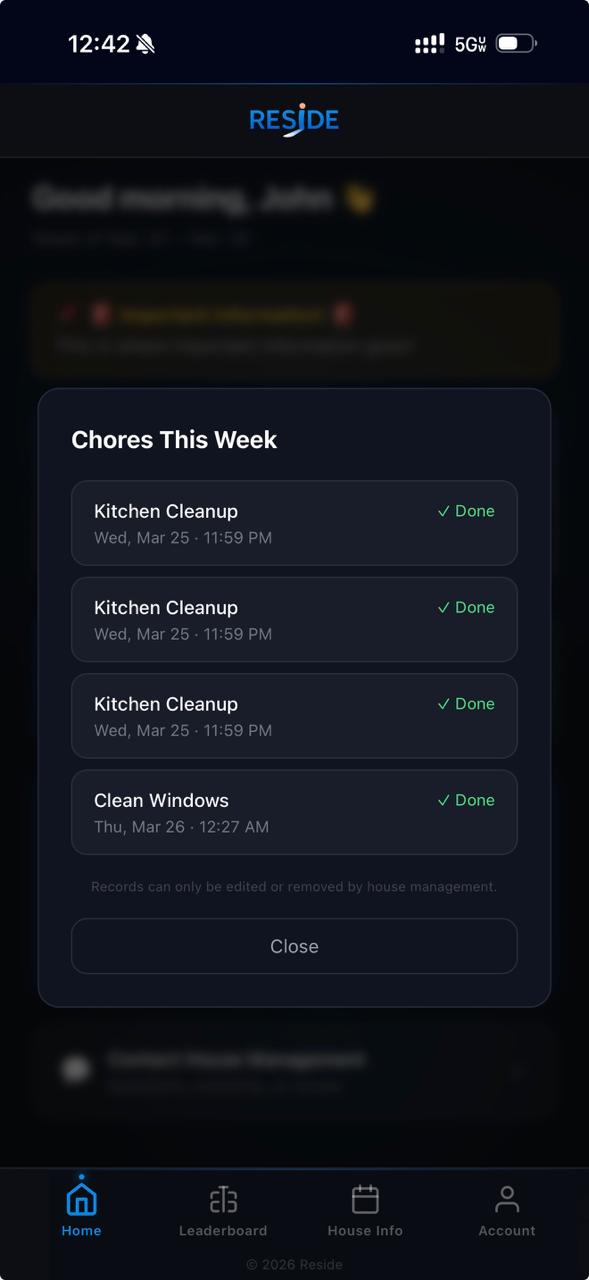
Tap on the Meetings or Chores progress cards to see everything you've logged this week.
Note: Only house management can edit or remove records.
Scroll to Contact House Management at the bottom of your Home screen to reach your house managers directly.
You can use this for:
If your house uses sign-out tracking, you'll see Sign Out and Sign In buttons on your Home screen. This feature may not be enabled at every house — if you don't see these buttons, your house doesn't require it.
Sign out tracking is optional and configured by house management. If you don't see the Sign Out button on your Home screen, your house doesn't use it.
When you leave the house, tap Sign Out on your Home screen. A modal will appear asking for:
Tap Sign Out to confirm. Your status will update to OUT on the house roster.
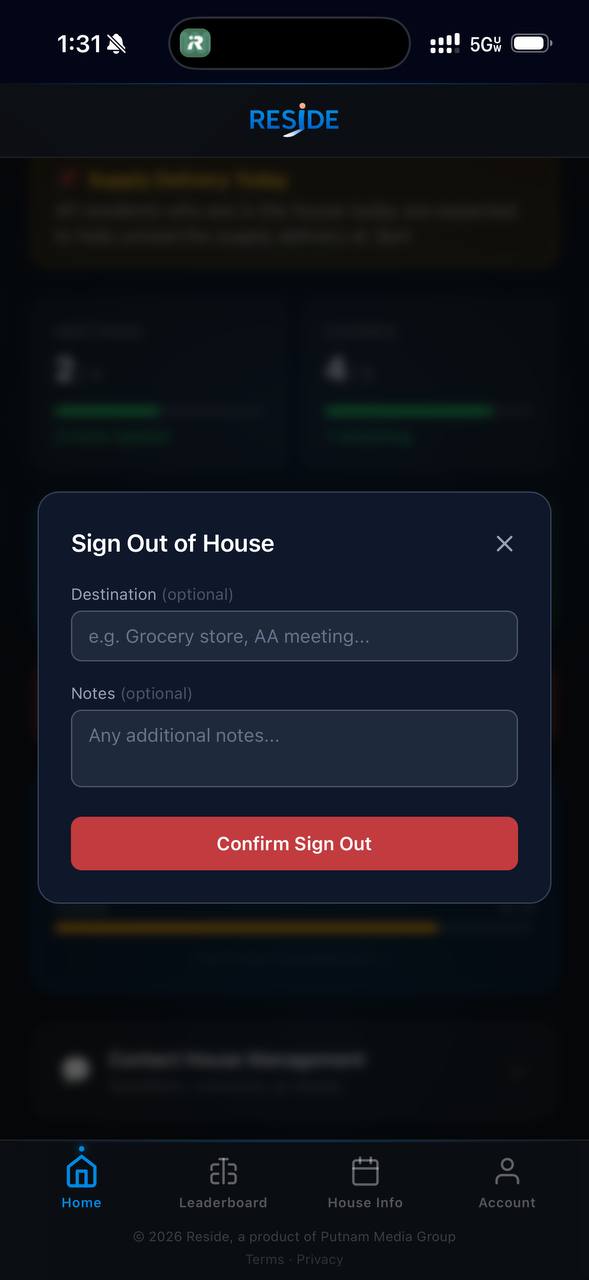
When you return, tap Sign In on your Home screen to mark yourself back in the house. Your status will update to IN.
If your house has a curfew, you'll need to be signed back in before the curfew time. If you're not signed in by curfew, house management will be notified automatically.
Always sign back in as soon as you return — even if it's before curfew — so staff know you're home.
House management can view a full history of your sign-outs and sign-ins. Make sure your destination is accurate each time you sign out.
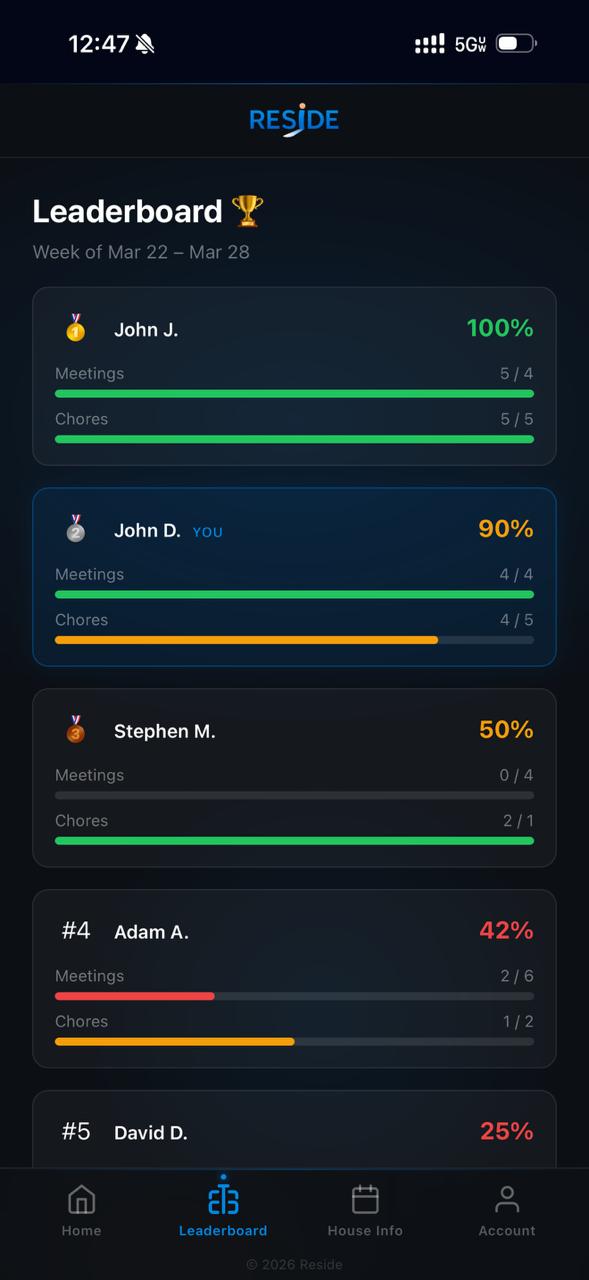
The Leaderboard shows how you and other residents are doing for the current week — ranked by overall compliance.
The Leaderboard is meant to help you stay accountable and track your progress. Some houses may choose to disable this feature, so it may not always be visible in your app.
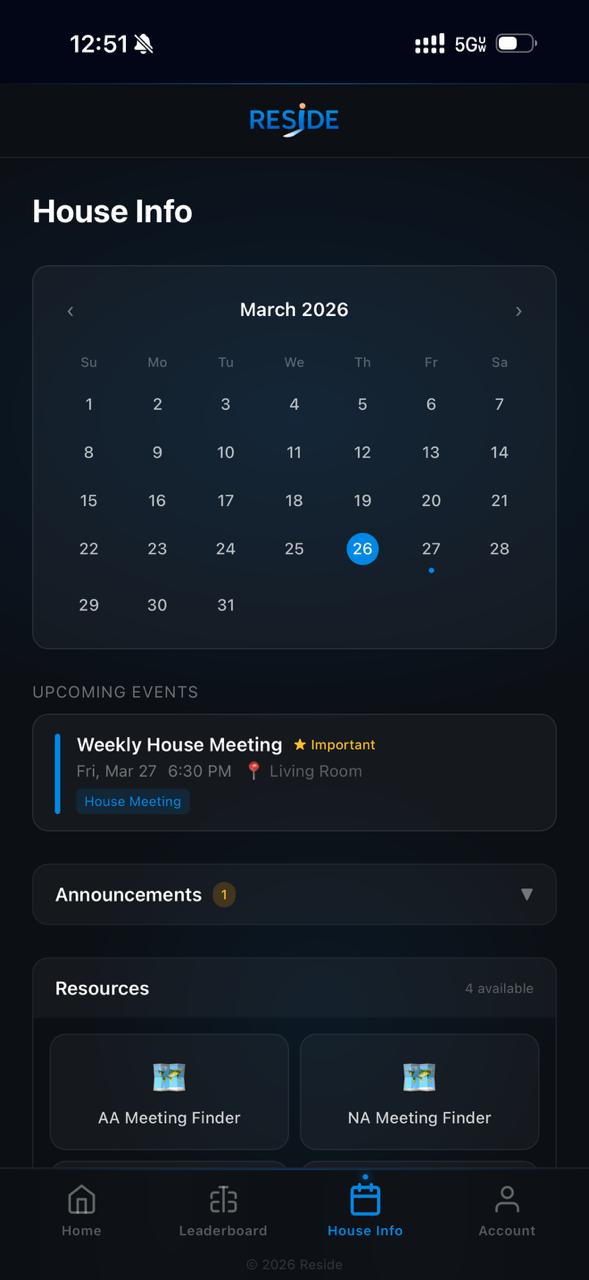
The House Info tab keeps you informed about what's happening in your house — events, announcements, and resources all in one place.
The calendar shows the current month and highlights important dates.
Tap a date to view events scheduled for that day.
Shows the next scheduled events in your house. Each event card includes:
Some events are marked as Important — prioritize these. They may include house meetings, required appointments, or court dates.
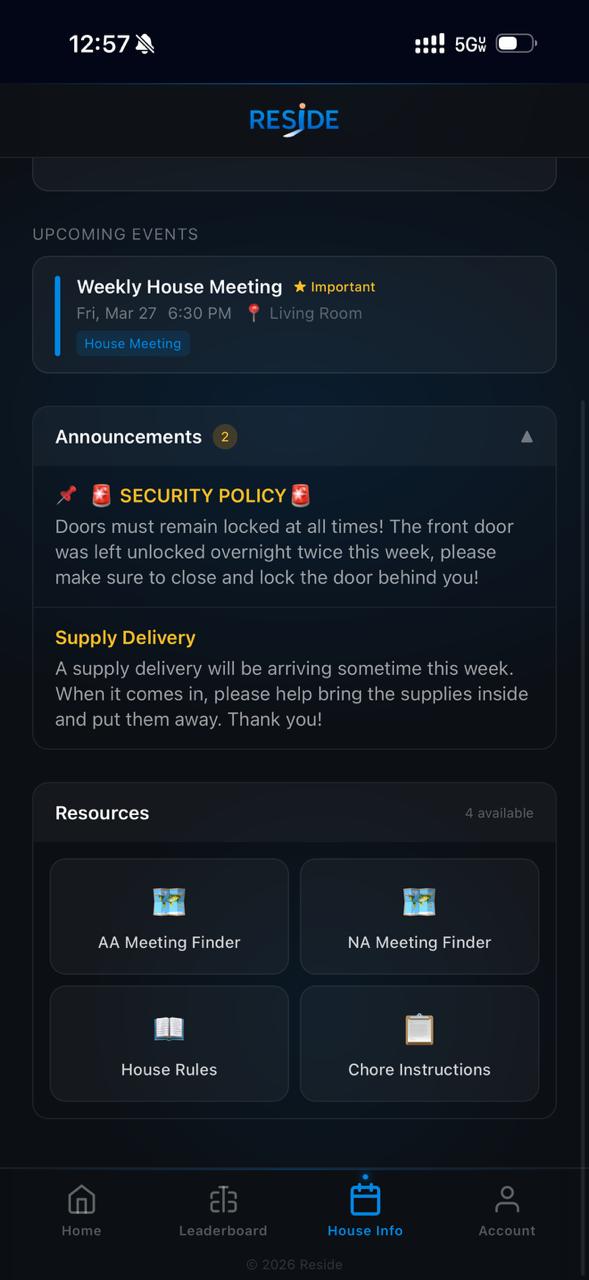
This is where house management shares important updates with residents. Each announcement includes a title, message, and date.
Pinned announcements are especially important — they also appear at the top of your Home screen so you can't miss them.
Announcements are read-only. Only house management can create or edit them. Expired announcements may be removed automatically.
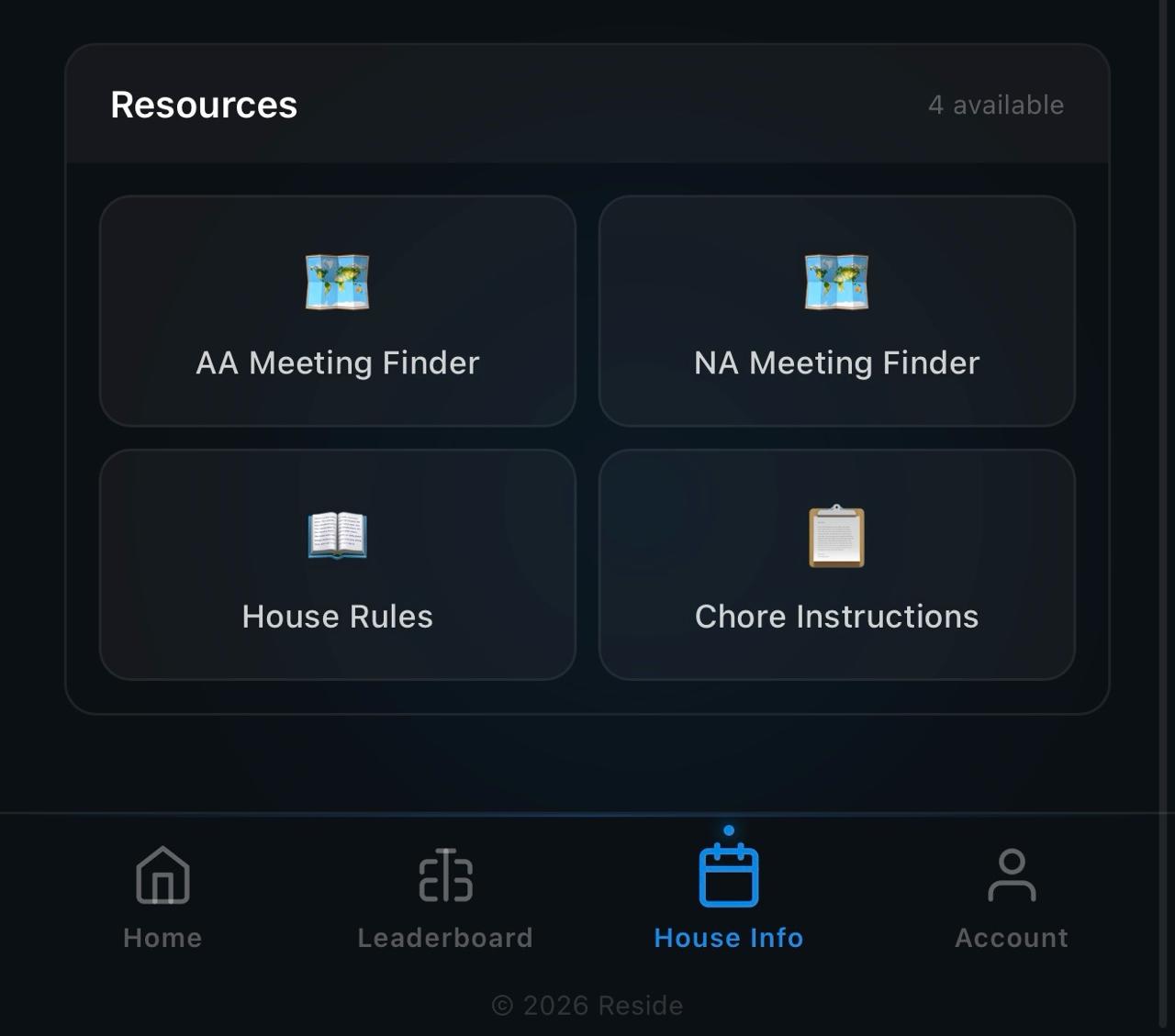
Quick access to helpful tools and important house-related information. Resources appear as easy-to-tap cards and may include things like AA/NA meeting finders, house rules, chore instructions, and more.
Note: Available resources vary by house. Management can add or remove them at any time.
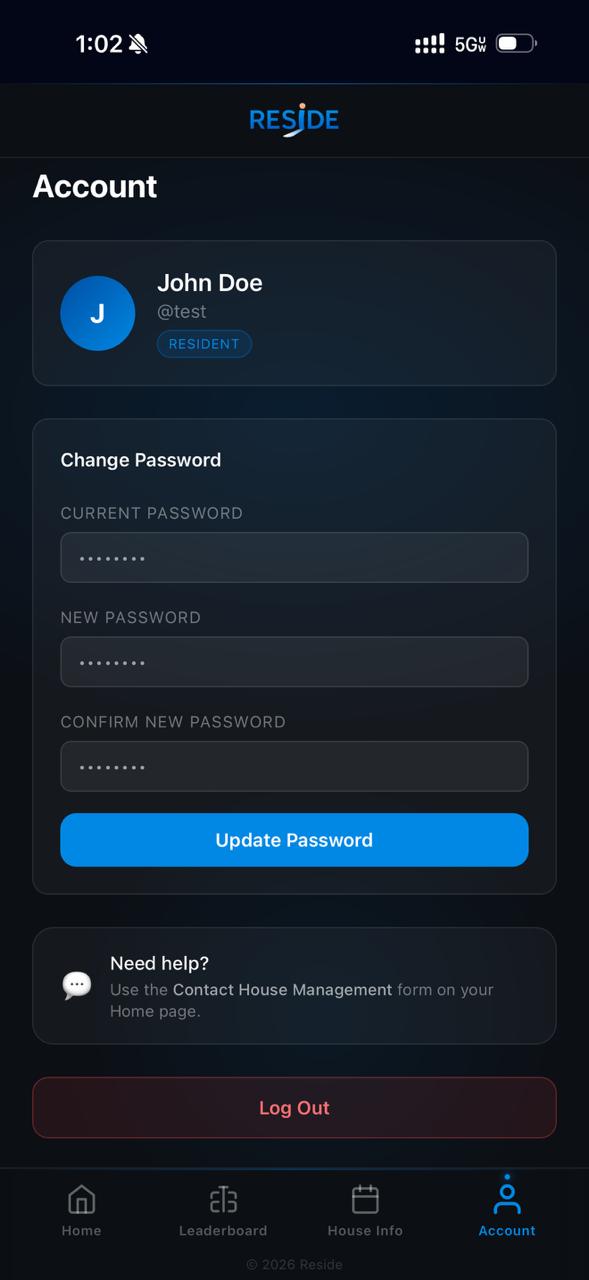
The Account tab is where you can view your profile and manage your login information.
At the top of the page you'll see your name, username, and role (e.g. Resident). This information is set by house management.
If you're having trouble with your account, use the Contact House Management form on your Home screen to reach out for support.
Tap the Log Out button at the bottom of the Account screen to safely sign out of the app.